
About Gyansie
How do I pronounce Gyansie?
Gyan•zee. The name comes from the Hindi word for wisdom and knowledge - Gyaan.
What is Gyansie?

Gyansie is an AI-powered app that transforms your images into interactive, actionable content. Simply upload photos, screenshots, or PDFs, and Gyansie automatically analyzes them to create useful widgets like color palettes from design inspiration, recipes from food photos, organized data from invoices, and study materials from educational content. It helps you extract value from your visual content without manual organization.
Getting Started
What kind of content can I upload to Gyansie?
Gyansie is your friendly AI assistant. You may upload images, screenshots, and PDFs containing design inspiration, food photos, invoices, your own study notes, and other visual content. You are responsible for the content you upload. Do not upload malicious content, NSFW content, or content for which you do not have the rights. By uploading content to Gyansie, you confirm that you have the rights to use and share that content with us.
How do I import assets into Gyansie?
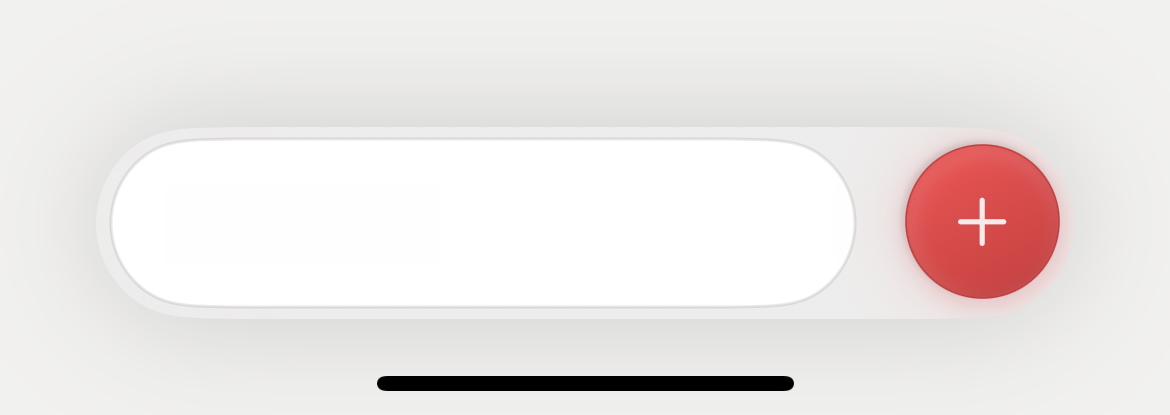
Press the red plus button at the bottom of the screen to import images, screenshots, and PDFs. There are limits on the length and number of assets you can upload at once.
What's the difference between uploading one image versus multiple images?

When you upload multiple assets together, they're analyzed as a single entity. This is useful for content that spans across multiple images or screenshots.
Why does it take time for Gyansie to analyze my content?
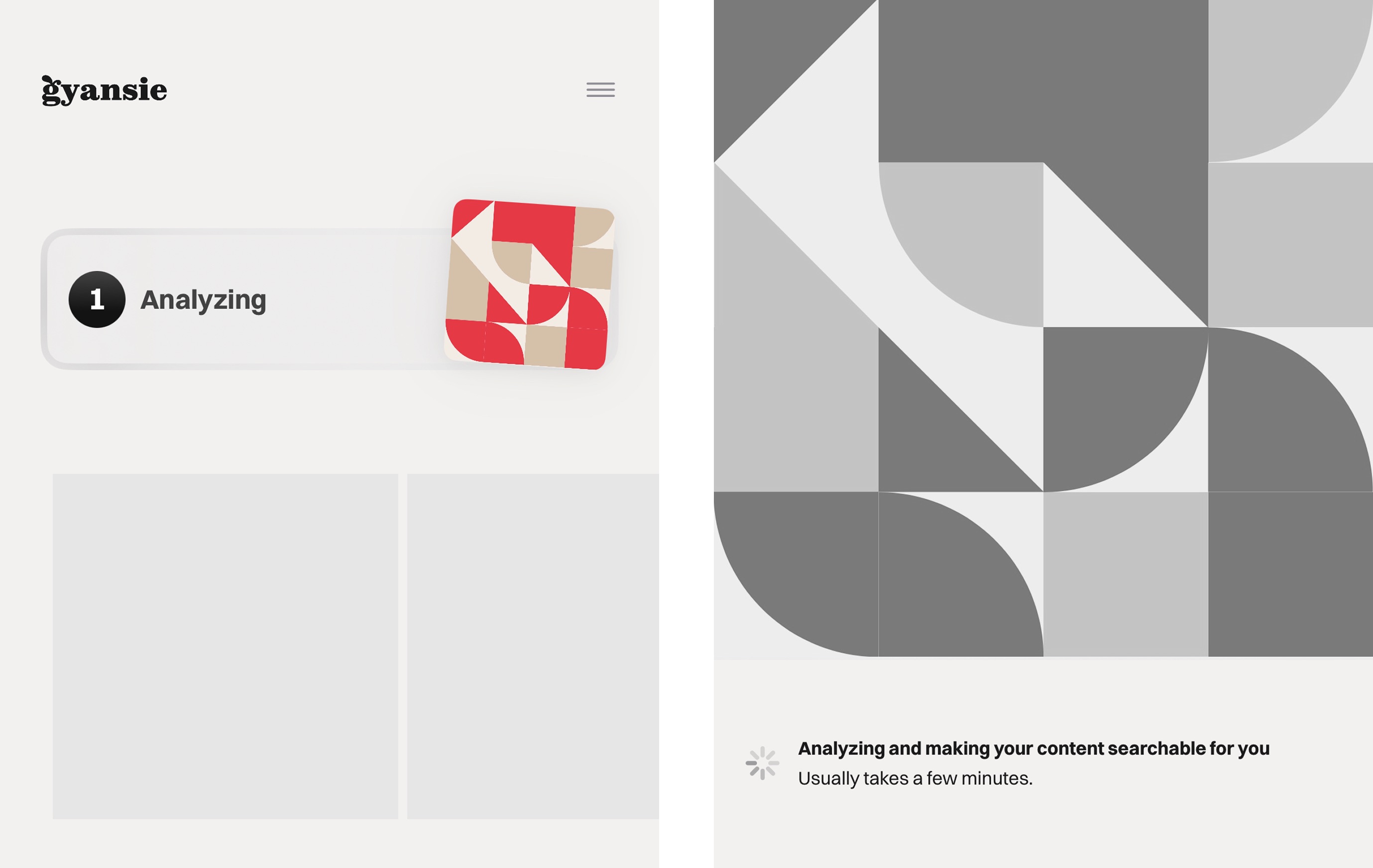
Gyansie performs comprehensive AI analysis through various lenses on our servers to generate extended data and interactive widgets. This typically takes a few minutes. While you wait for the extended analysis, you can add notes, mark it as favorite, upload other assets, or move the app to the background while analysis continues. The status is displayed in the detail view. When analysis is complete, any detected elements will appear as widgets and detailed information.
How does Gyansie generate insights from my assets?
When you upload an asset, it's sent to our servers for AI analysis. The AI examines the image, understands its context and content, and creates interactive widgets you can use. It also creates a search index that helps you find content when you need it.
Using Gyansie Features
How do I view AI insights and interactive widgets?
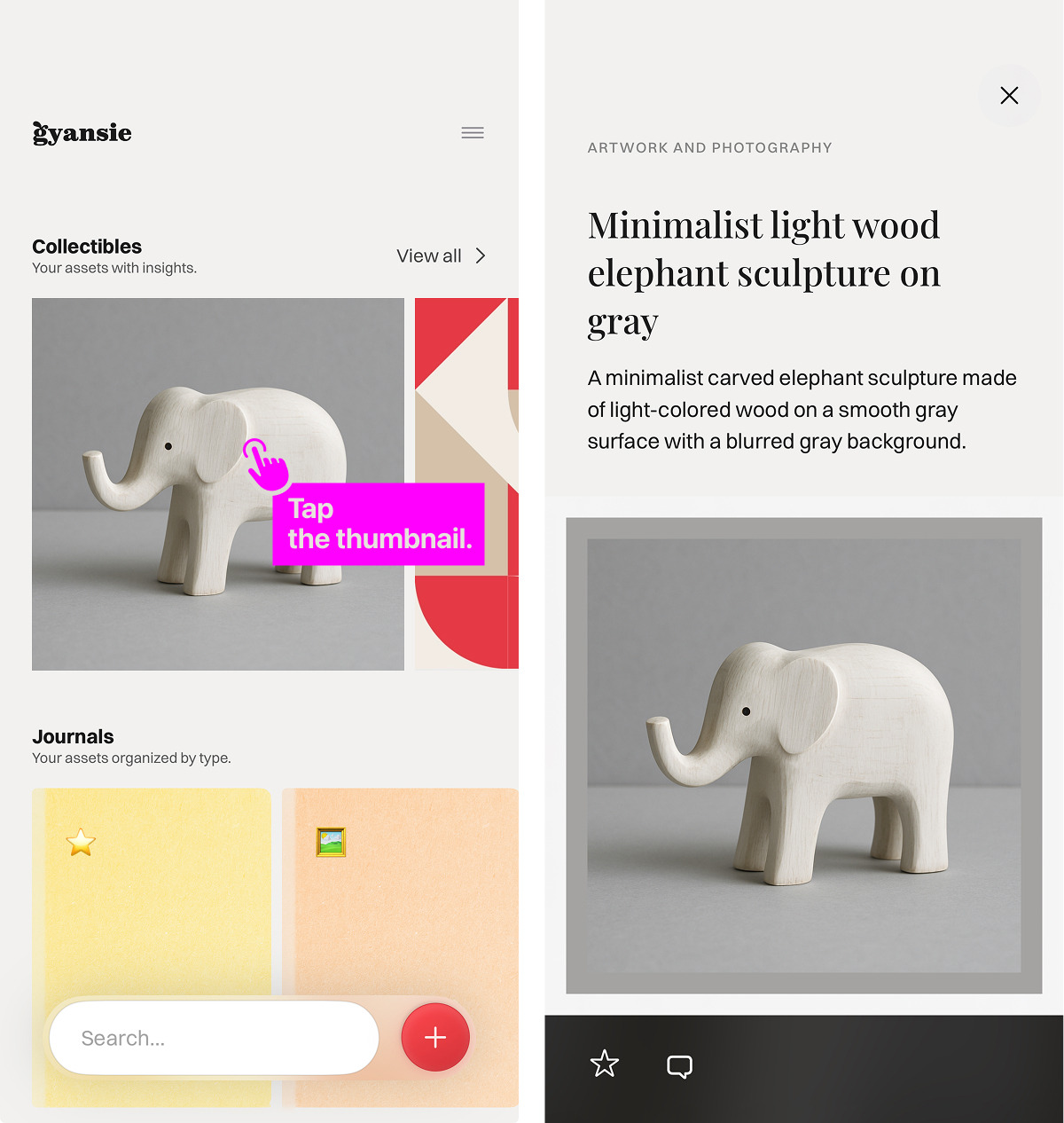
After uploading, your asset appears as a thumbnail on the home screen. Tap it to see the description and title. If you uploaded multiple assets together, swipe to see all images. Scroll down to view any interactive content the AI has created.
What types of interactive content does Gyansie generate?
Gyansie creates different content based on your image type:
Design inspiration: Color palette extraction and interactive color explorer
Food images: Recipe generation with ingredients and steps
Invoices: Data extraction and organization
Study materials: Study notes and flashcards
How do I use the color palette tool?
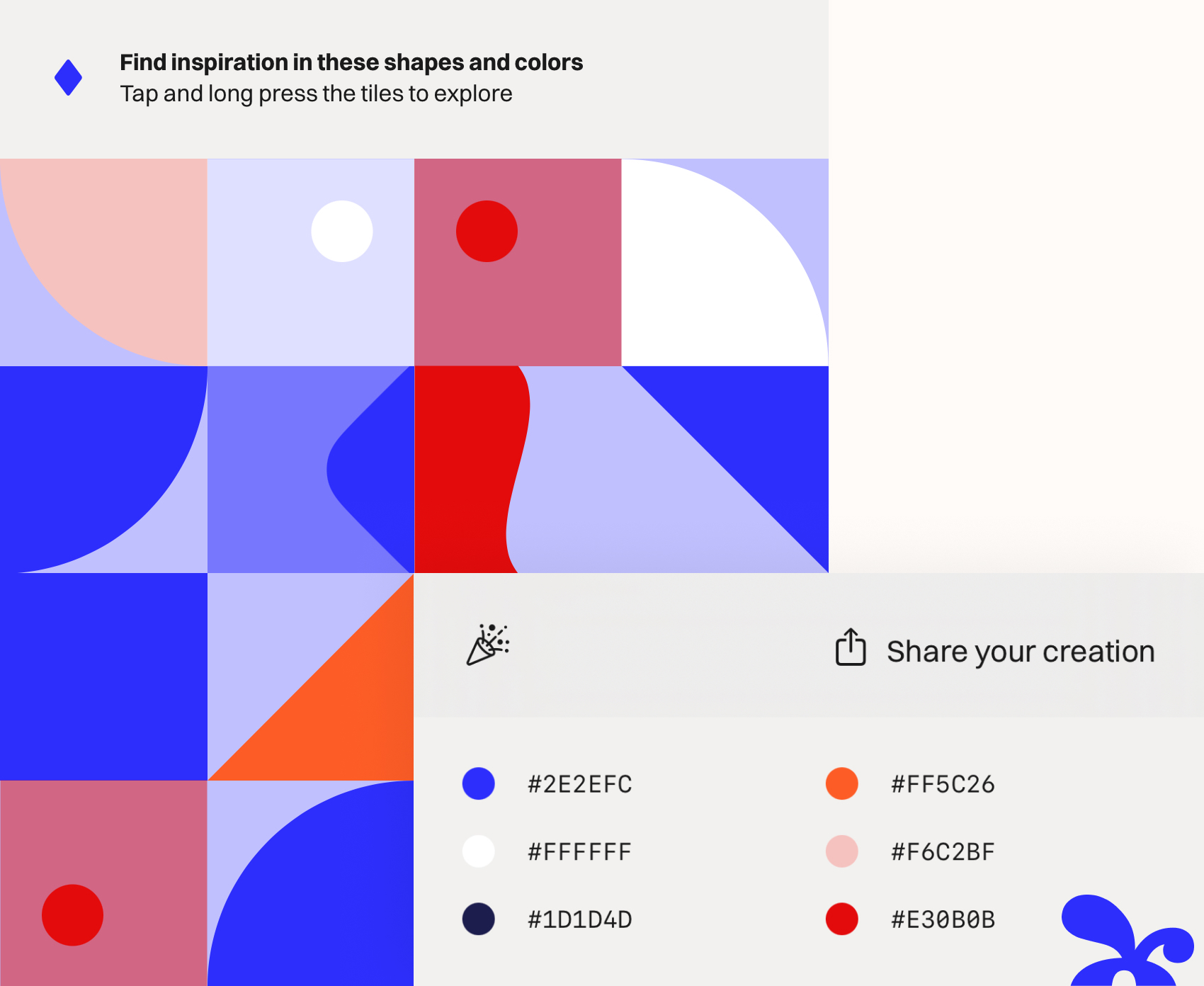
The color palette tool extracts colors from your images and displays them in various shapes. Tap shapes to change their color and cycle through different forms. You can share your creations as images or tap the play button to auto-cycle through colors and shapes. Tap color codes to view hex, RGB, and HSB values. The abstract shapes help you visualize various forms and textures through color blocks to stimulate your imagination.
How do I use the recipe widget?
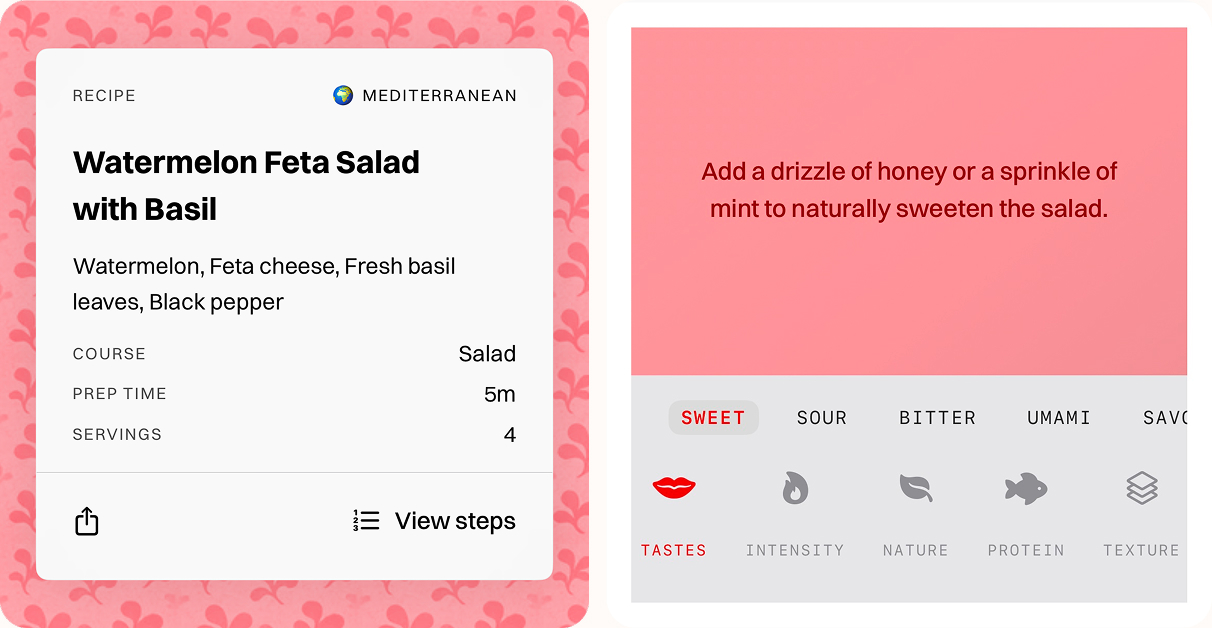
When you upload a food image, Gyansie creates a recipe card showing cuisine type, title, and ingredients. Tap "View Steps" for detailed instructions. Below, you'll find a recipe tuner to explore variations and pairing tips for complementary dishes.
How do I use the invoice widget?
The invoice widget displays key details like invoice number, amount, due date, and item summary. You can export a detailed CSV file. For future due dates, you can add calendar reminders or download an ICS file. The "Set Reminder" button creates a notification for 9 AM on the due date.
How do I use the study notes widget?
When study materials are detected, Gyansie creates summaries and flashcards of key concepts. These complement your original notes. Swipe through key points and tap "Take a Quiz" for practice questions including true/false, multiple choice, and open-ended formats. Hints and answers with explanations are available.
Organization and Search
How can I find my uploaded assets?

Use the search bar to find your content. Some results appear immediately as you type. Keep typing keywords or natural language phrases - describe what you're looking for or your current activity, and press the blue search button on your keyboard and Gyansie will find relevant assets.
Can I add notes to my assets?
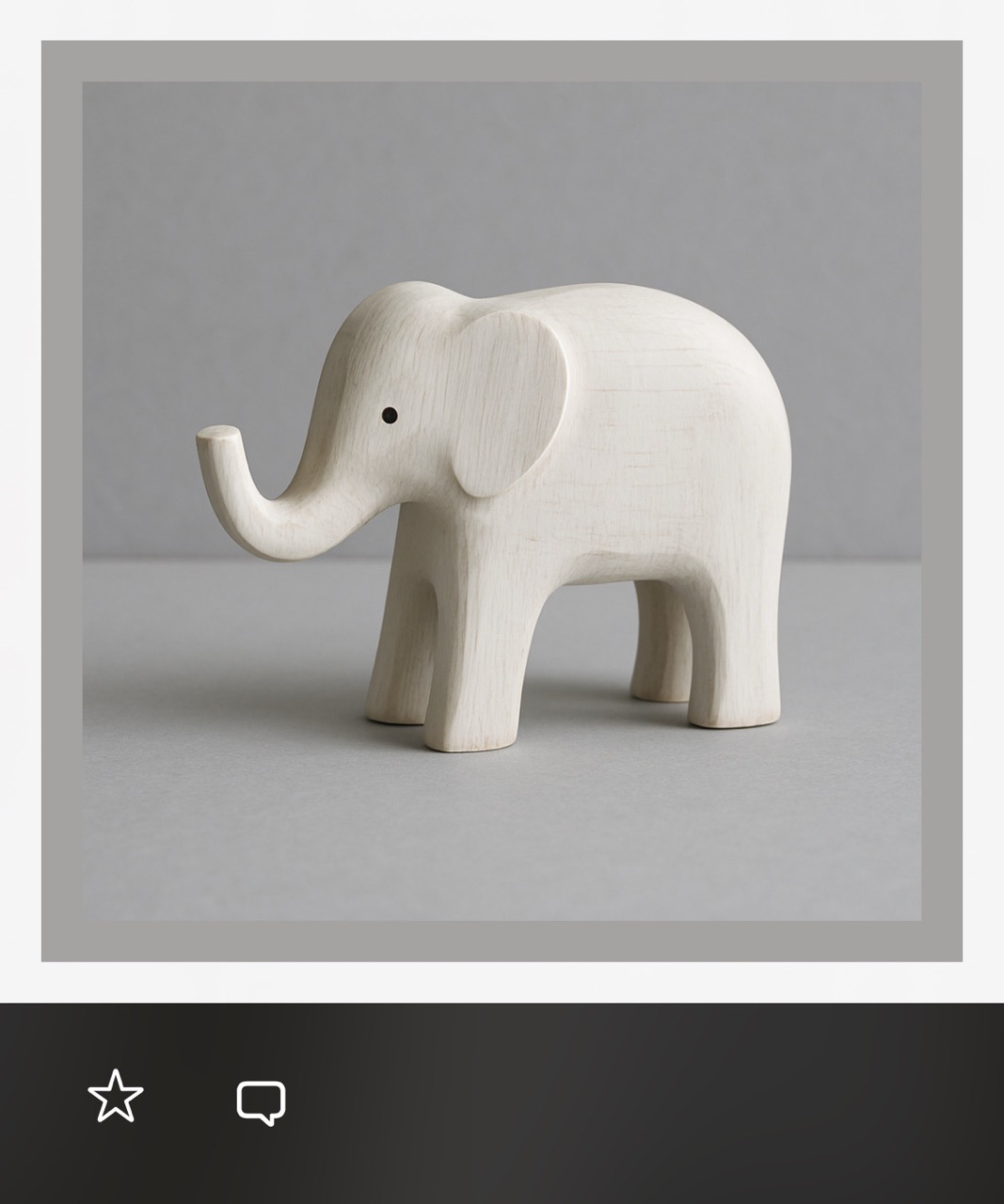
Yes, tap the speech bubble icon below any image to add a note.
Can I mark assets as favorites?
Yes, tap the star button below any image to mark it as a favorite. All favorites are accessible in the Favorites journal.
What are journals?
Journals automatically organize your content by type without manual sorting. For example, all invoices go to one journal, design inspiration to another, and favorites to their own journal. Journals help you stay organized without worrying about organization.
Account and Privacy
Why can't I upload more assets?
Free accounts have daily upload limits that may vary. You receive some free uploads when you first download the app. Paid plans with increased limits are coming soon. You can check your remaining uploads by tapping the three horizontal bar menu on the top right of the screen, and viewing the current remaining uploads. Upload limits are dynamic and may be different every day.
Is my data private?
Your name and email are stored securely only on your device and never sent to our servers. We are grateful that you use Gyansie, but at the same time, we would like to know as little about you as possible. When you upload an asset, an anonymous identifier (a really long number) is sent along with it so that we can send the processed assets back to you and not to someone else. Images or PDFs are deleted from our servers once they are downloaded by your device and uploaded to a database (Apple's CloudKit) accessible only by you via the app.
We do need to retain some data to respond to your search queries and provide core functionality. It is tagged with that same anonymized identifier so that your data is made available to only you. Having said that, for your own privacy, and to keep Gyansie a safe and happy place, only upload data that you are comfortable sharing.
We do use a third-party service provider for AI analysis in accordance with our Privacy Policy. We never sell or rent your data or show you ads against it.
How can I delete my account and data?
Go to the Account page (tap the three horizontal lines icon at the top right of the home screen), scroll down, and tap "Delete My Account." This action is permanent and cannot be undone - we cannot recover deleted accounts. So if you are sure, tap the "Yes, delete my account" button. Your data will deleted in a few minutes. To use Gyansie again, it is best to uninstall and reinstall the app if you have deleted your account.
Future Updates
Does Gyansie only understand recipes, notes, design inspiration and invoices?
Gyansie is constantly evolving. We plan to support more asset types and content categories to stay true to how we think about our app – if you can see it, Gyansie it.